RHB Navigation Software Enhancements (08-002-17 REV. B)
Reference number: 08-002-17 REV. B
Supersedes refnos: 08-002-17, 08-002-17 REV. A
RHB NAVIGATION SOFTWARE ENHANCEMENTS
TECHNICAL SERVICE BULLETIN
| CHRYSLER: | 2013 - 2017 Jeep Wrangler (JK), Chrysler Town and Country/Dodge Caravan (RT), Jeep Compass/Patriot (MK) |
| GROUP: | Electrical |
SUBJECT
RHB Navigation Software Enhancements
OVERVIEW
This bulletin involves reprogramming the RHB radios with the latest available navigation software.
MODELS
| 2013 - 2017 | (JK) | Jeep Wrangler |
| 2013 - 2017 | (RT) | Chrysler Town and Country/Dodge Caravan |
| 2013 - 2017 | (MK) | Jeep Compass/Patriot |
SYMPTOM/CONDITION
The following software enhancement is available:
- This software update will prevent the navigation screen from locking up, a black or blank display, or the messages "maps not unlocked", "can't unlock maps", "no detailed maps available", or "maps locked, detailed maps needed".
DIAGNOSIS
Using a Scan Tool (wiTECH) with the appropriate Diagnostic Procedures available in TechCONNECT, verify all related systems are functioning as designed. If DTCs or symptom conditions, other than the ones listed are present, record the issues on the repair order and repair as necessary before proceeding further with this bulletin.
If the customer describes the symptom listed above, perform the REPAIR PROCEDURE .
REPAIR PROCEDURE
- Press the navigation screen button and attempt to access the navigation main menu system.
- Does the radio display a message such as; "Loading Please Wait", "maps not unlocked", "can't unlock maps", "no detailed maps available", "maps locked, detailed maps needed"? or is the navigation screen black?
- YES >>> The radio will have to be replaced. Replace the radio using current electronic exchange center stock, in accordance with Service Information and under normal warranty process and procedures. Refer to published service information in Tech Connect Section 08 - Electrical/8E - Electronic Control Modules/Module, Telematics Gateway/Removal. No further action is required. The bulletin is now complete. The replacement radio will contain the latest software update.
- NO >>> Proceed to Step #3.
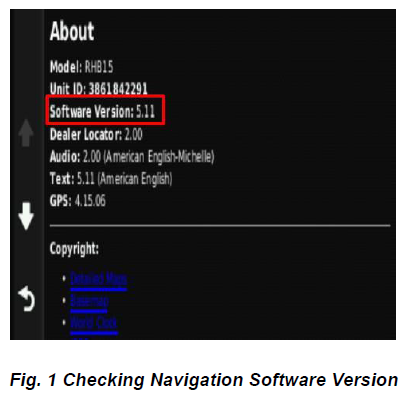
- Check the navigation software version (Fig. 1).
- Is the navigation software version at 7.09 or higher?
- YES >>> The navigation has the latest software already in it. This bulletin does not apply, normal diagnosis should be performed.
- NO >>> Proceed to Step #5.
- Is the navigation software version at 5.11 or lower?
- YES >>> The navigation software version must be updated to 5.19 before proceeding to Step #6 in this bulletin. Refer to previous published service bulletins regarding procedures for navigation updates. Failure to do so may result in the radio locking up.
- NO >>> The navigation software may need to be updated. Proceed to Step 7.
CAUTION: **Navigation must be at 5.19 or higher before updating to 7.09. Refer to previous published service bulletins regarding procedures for navigation updates. Failure to do so may result in the radio locking up or entering a Garmin reset loop.** - Is the navigation software version at 5.19 but less than 7.09?
- YES >>> The navigation software will need to be updated. Proceed to Step 14.
- NO >>> The navigation has the latest software (7.09). Bulletin is complete.
- Has the USB flash drive been created with software version 5.19?
- YES >>> Proceed to Step 10.
- NO >>> Proceed to Step #8.
- Go to DealerCONNECT>Service>Uconnect Command Center>Uconnect>More Information >Dealer software downloads to download the files.
- If a security message appears "Do you want to view only the web page content that was delivered securely?" press "NO" to continue.NOTE: The site is optimized for Microsoft Internet Explorer 8 or 10. Use these software versions if you encounter a problem downloading the software.NOTE: A blank USB flash drive must be used to download the software. Only one software update can be stored on a USB flash drive.NOTE:
- Acquire a blank USB flash drive with at least 4 GB of space.
- Download the software update file to your local PC's desktop.
- Be sure to extract the file before copying it to the blank USB.
- Once the file is saved to the USB flash drive, it is recommended you label the USB flash drive with the bulletin number and radio sales code.
CAUTION: The screen may display "No Files On USB" do not remove the USB flash drive. This message should only last about one minute.NOTE: If the software update process is interrupted/aborted, the process should be restarted. - With the engine running and radio powered on, insert the USB flash drive with new software into the radio USB port.
- The next screen display will have the old and new navigation software levels, press "YES".NOTE: Do not cycle the ignition or adjust the radio (volume, channels, etc.) during the update process.NOTE: If the navigation software was 2.90 or lower, you will receive a "PND Failure" indicating that the update was not needed. Press OK to continue.
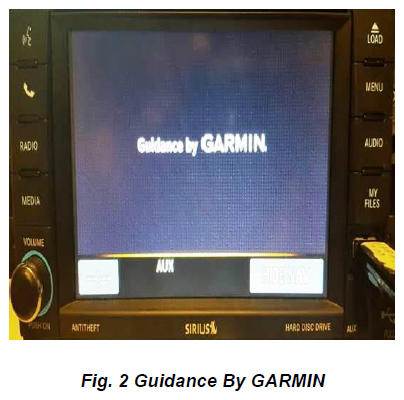
- Once the navigation download has been completed, press OK to continue. The software will now load and show the Guidance by Garmin screen for a few minutes (Fig. 2).
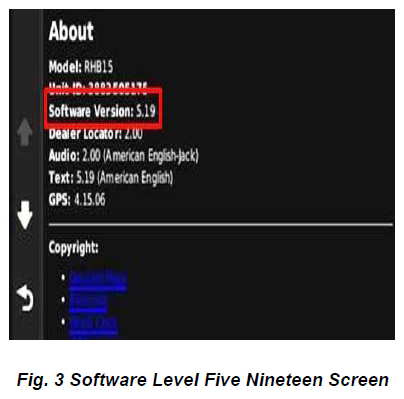
- Remove the USB flash drive, the 5.19 software update has been completed (Fig. 3). Proceed to Step #14.
- Has a USB flash drive been created with software version 7.09?
- YES >>> Proceed to Step 17.
- NO >>> Proceed to Step #15.
- Go to DealerCONNECT>Service>Uconnect Command Center>Uconnect>More Information >Dealer software downloads to download the files.
- If a security message appears "Do you want to view only the web page content that was delivered securely?" press "NO" to continue.NOTE: If the software update process is interrupted/aborted, the process should be restarted.
- With the engine running and radio powered on, insert the USB flash drive with new software into the USB port.CAUTION: The screen may display "No Files On USB" do not remove the USB flash drive. This message should only last about one minute.
- When prompted, "Update baseline data files on HDD?" appears press "YES".
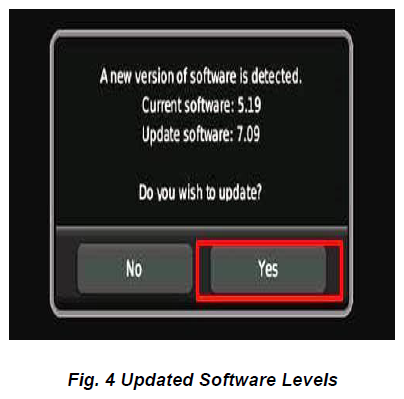
- The next screen display will have the old and new navigation software levels, press "YES" (Fig. 4).NOTE: Do not cycle the ignition or adjust the radio (volume, channels, etc.) during the update process.
- Once the navigation download has been completed the screen will display "PND Updated Completed", this should only take two minutes. Press OK to continue.
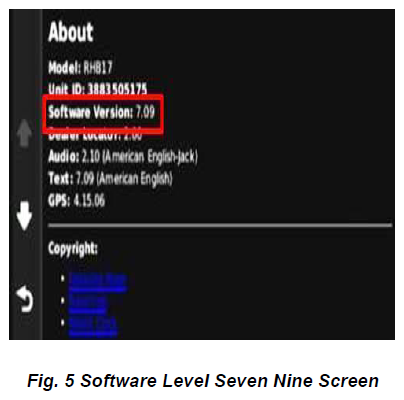
- Remove the USB flash drive, the 7.09 software update has been completed (Fig. 5).
RECOVERY PROCESS
- If the software update process was performed in the wrong order (7.09 update before the 5.19 update)
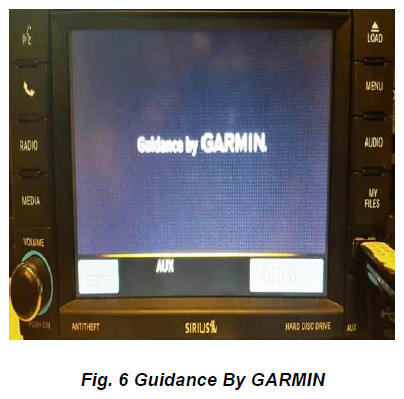
, the update will experience a reboot loop, toggling between the Guidance by GARMIN and a blank black screen (Fig. 6).
- To perform the recovery process, remove any USB inserted into the radio USB port.
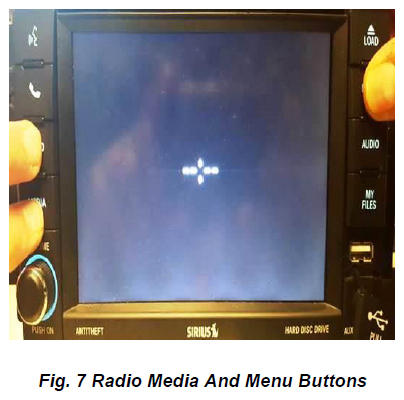
- Press and hold the RADIO, MEDIA, and MENU buttons simultaneously for 10-15 seconds (Fig. 7).
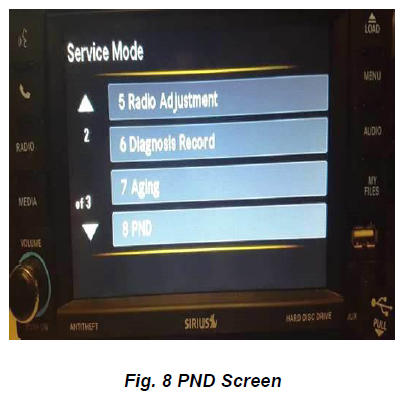
- Press the down arrow and select "8 PND" (Fig. 8).
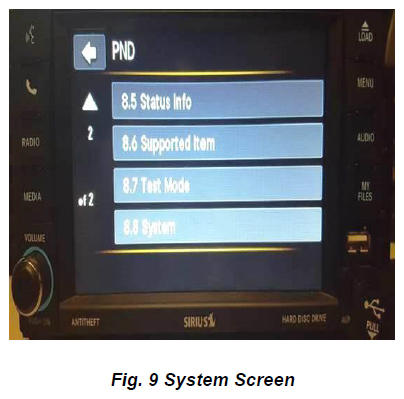
- Press the down arrow and select "8.8 System" (Fig. 9).
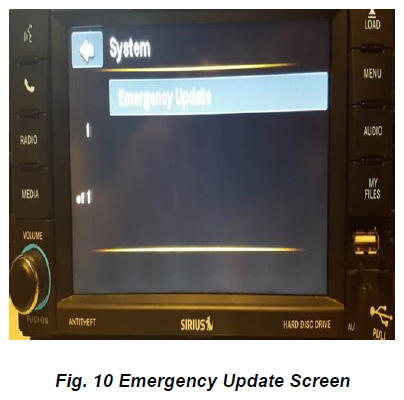
- Select "Emergency Update" (Fig. 10).
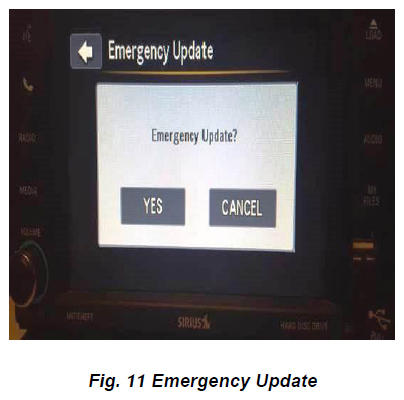
- Insert the USB with software update 5.19 and select "YES" on the emergency update screen (Fig. 11).
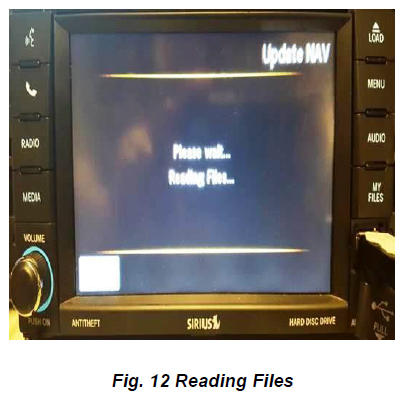
- Wait two to three minutes for the files to be read (Fig. 12).
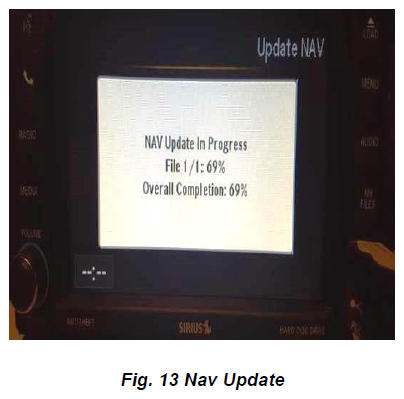
- The software download may take up to 10 minutes (Fig. 13).NOTE: The software update is not complete by pressing OK. You must exit the emergency update settings to complete process.
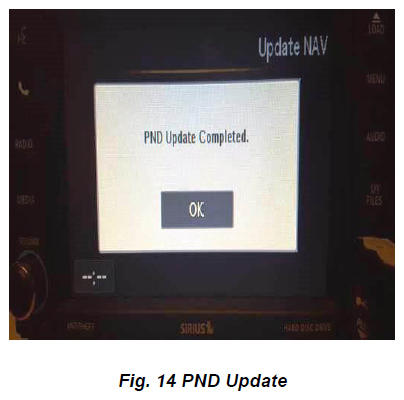
- Press "OK" at the "PND screen" (Fig. 14).
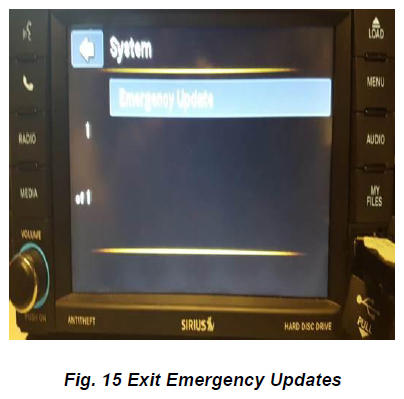
- Once the software download is complete, exit Emergency Update settings by pressing the back arrow twice
(Fig. 15).
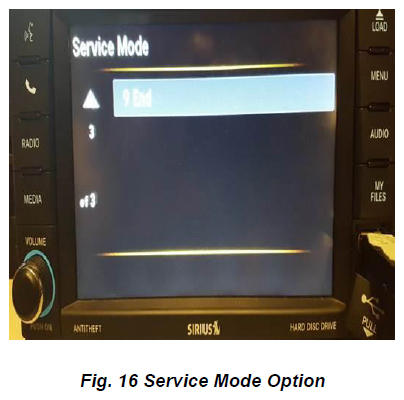
- Scroll to the third screen in Service Mode and select "9 End" to exit (Fig. 16).
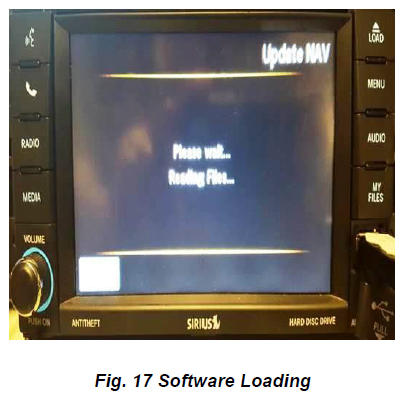
- The software update process should begin and take approximately 10-15 minutes to complete (Fig. 17).
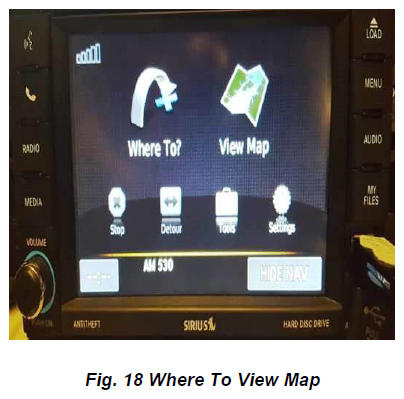
- When the software update is complete, the Where To?/View Map screen will appear (Fig. 18).
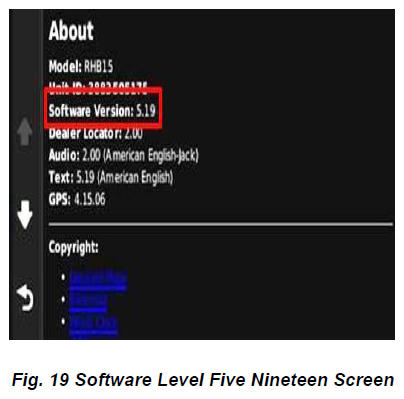
- After the software update is complete, verify the new 5.19 software has been loaded (Fig. 19).
- Proceed to the Repair Procedure Step 14 and update the navigation software to version 7.09.
POLICY
Reimbursable within the provisions of the warranty.
TIME ALLOWANCE
| Labor Operation No: | Description | Skill Category | Amount |
|---|---|---|---|
| 18-60-02-LE | Radio, Software Update (Version Level 7.09 Only) (0 - Introduction) | 6 - Electrical and Body Systems | 0.3 Hrs. |
| 18-60-02-LF | Radio, Software Update (Version Level 5.19 and 7.09) (0 - Introduction) | 6 - Electrical and Body Systems | 0.4 Hrs. |
| 18-60-02-LG | Radio, Software - Create up to (2) USB Jump Drives from CD or Uconnect Website (One Time Only) (0 - Introduction) | 6 - Electrical and Body Systems | 0.2 Hrs. |
FAILURE CODE
The dealer must choose which failure code to use. If the customer came in with an issue and if the dealer finds a software update to correct that issue, use failure code CC, for all other use failure code RF.
- If the customer's concern matches the SYMPTOM/CONDITION identified in the Service Bulletin, failure code CC is to be used.
- If an available flash is completed while addressing a different customer concern, failure code RF is to be used.
| CC | Customer Concern |
| RF | Routine Flash |